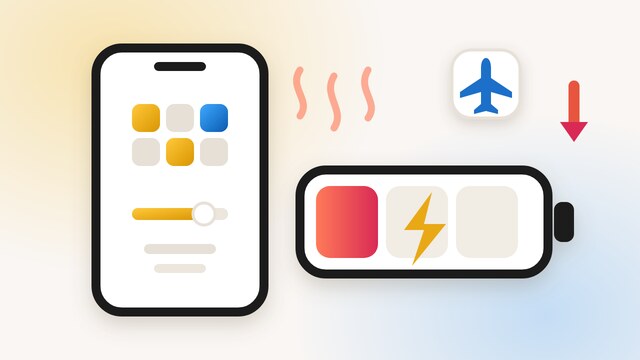
You drop into a battle royale match with 40% battery, and fifteen minutes later, you are scrambling for a charger as the 15% low-power warning flashes across your screen.
Modern mobile games are incredibly demanding. They force your phone’s processor (CPU), graphics chip (GPU), display panel, and network modem to operate at maximum capacity simultaneously. Because smartphones pack high-density lithium-ion batteries into tight, unventilated spaces, this intense power draw also generates heat, which further degrades battery efficiency in real time.
You cannot play a heavy 3D game without consuming power, but you can stop wasting it. By manually restricting specific hardware pipelines and turning off unnecessary physical feedback, you can easily double your screen-on time during a gaming session without sacrificing your competitive edge.
Quick Diagnostic & Troubleshooting Reference Table
Use this reference table to locate power drain culprits during mobile gaming:
| Power Drain Component | Power Impact | Battery Saving Optimization |
|---|---|---|
| High Frame Rate (90Hz / 120Hz) | High (30–40% extra battery draw) | Cap frame rate to 60 FPS (or 30 FPS for offline RPGs) |
| Display Brightness > 80% | Very High (OLED backlight battery draw) | Set brightness to 40–50% manual limit |
| Haptic Feedback & Vibration Motors | Moderate (Linear motor power spikes) | Disable haptic feedback & touch vibration in game settings |
| Background App Refresh & Sync | Moderate (CPU wake-locks and background modem polling) | Enable Battery Saver / Game Mode restrictions |
Primary Contributors to Mobile Battery Exhaustion
Energy consumption during gaming is driven by four primary smartphone modules:
- GPU Pixel Rendering: Rendering shadow maps, antialiasing, and bloom lighting at native panel resolution.
- Display Backlight / OLED Drive: High screen brightness levels requiring continuous voltage delivery.
- Wireless Connectivity Modems: Weak cellular signals or 5G bands searching for towers during online multiplayer matches.
- Audio Amplifiers & Speakers: Stereo speaker volume at maximum capacity driving hardware voice coils.
Step-by-Step Technical Verification Steps
Follow these step-by-step measures to maximize mobile gaming battery runtime:
- Cap In-Game Frame Rate: Open your game’s graphics menu and set Frame Rate to 60 FPS (or Medium). Rendering at 120Hz drains nearly twice as much energy as 60Hz.
- Switch from Cellular Data (5G/4G) to 5GHz Wi-Fi: Mobile modems consume up to 3x more battery boosting signal on cellular networks compared to local Wi-Fi.
- Disable Haptic Feedback and Speaker Volume: Turn off controller/touch vibration motors and use wired or Bluetooth earphones instead of built-in speakers.
- Turn Off Background App Sync: In phone settings, toggle off Background App Refresh and sync routines for social media apps before gaming.
- Check Hardware & Battery Utilities: Visit our Gaming Tools portal for battery health guides, screen refresh rate toggles, and mobile performance benchmarks.
Frequently Asked Questions (FAQ)
Does dark mode save battery while gaming?
On devices with AMOLED/OLED screens, dark mode turns off individual black pixels completely, saving up to 15% battery power compared to bright white interface elements.
Is it bad to play games while charging my phone?
Yes. Charging generates heat in the battery, and gaming generates heat in the SoC. Combined, this extreme heat accelerates lithium-ion battery degradation and causes severe thermal throttling.
Why does my battery drop faster below 20%?
Lithium-ion battery voltage drops sharply near full discharge. Under high current load from a game, this voltage drop triggers the system to shut down faster to protect the battery cell.