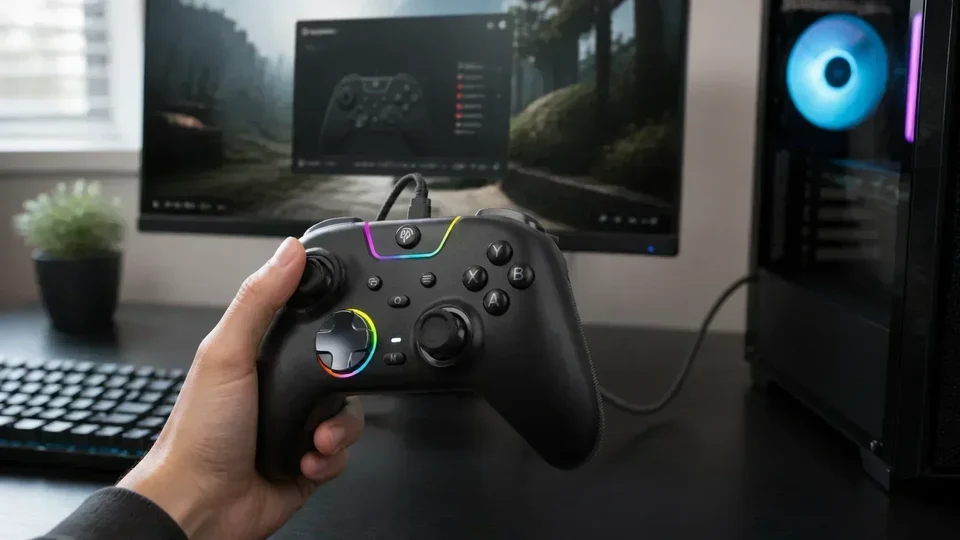
Connecting an Xbox, PlayStation, Nintendo Switch Pro, or generic gamepad to your PC should be a seamless plug-and-play experience. Yet, launching a game often reveals frustrating controller mapping issues: the right analog stick controls movement instead of the camera, triggers register as digital buttons, or face buttons are completely inverted.
These glitches usually occur because Windows, Steam, third-party launchers, and game engines handle controller input APIs differently (XInput vs DirectInput). Working through these systematic technical troubleshooting steps will resolve input translation conflicts and restore proper button mapping.
Quick Diagnostic & Troubleshooting Reference Table
Refer to this reference matrix to resolve PC controller button mapping errors:
| Controller Symptom | API / Software Conflict | Recommended Technical Fix |
|---|---|---|
| PlayStation / DualSense buttons showing Xbox prompts | Game lacks native DualSense API support | Enable Steam Input or use DS4Windows with XInput emulation |
| Double input / Single button press triggers twice | Steam Input + DS4Windows active simultaneously | Hide physical controller in DS4Windows settings or disable Steam Input |
| Triggers acting like buttons or unresponsive | DirectInput legacy driver translation bug | Calibrate controller axes in `joy.cpl` control panel |
| Analog stick camera spinning automatically | Stick drift or zero deadzone configuration | Increase Deadzone in Steam Controller Settings / game menu |
Primary Causes of PC Controller Mapping Glitches
Controller mapping errors stem from fundamental input protocol differences:
- XInput vs DirectInput Conflict: Modern games expect XInput (Xbox standard), while older or generic controllers send DirectInput signals.
- Double Controller Enumeration: Background mapping software (DS4Windows, reWASD) creating a virtual Xbox pad alongside the real pad.
- Steam Input Overrides: Steam Input translating controller inputs for games that already feature native controller support.
Step-by-Step Technical Verification Steps
Follow these steps to fix controller button mapping issues on PC:
- Configure Steam Input Per-Game Toggles: Right-click the game in Steam Library > Properties > Controller. Switch Steam Input between Enable Steam Input and Disable Steam Input to test native game engine support.
- Calibrate Controller in Windows Control Panel: Press `Win + R`, type `joy.cpl`, select your controller, click Properties > Settings > Calibrate to re-center analog axes.
- Enable “Hide DS4 Controller” in DS4Windows: If using DS4Windows for DualShock/DualSense pads, check Hide DS4 Controller to prevent double-input bugs.
- Adjust Analog Stick Deadzones: In Steam Settings > Controller > Calibration, set a 5% to 10% deadzone on thumbsticks to stop drifting camera issues.
- Explore Controller Utility Tools: Visit our Gaming Tools portal for gamepad input test tools, controller latency benchmarks, and mapping software guides.
Frequently Asked Questions (FAQ)
Why does my game register two button presses every time I click once?
Double inputs occur when both your physical controller and a virtual emulated controller (created by DS4Windows or Steam Input) are detected by the game engine at the same time.
How do I make PlayStation button icons (Square/Triangle) show up on PC?
PlayStation button prompts appear only if the game developer natively integrated Sony SDK support over USB connection. If disabled or using Bluetooth, Windows defaults to Xbox (A/B/X/Y) icons.
Why are my controller triggers not working in older PC games?
Older games designed for DirectInput treat analog triggers as a single combined Z-axis rather than independent pressure-sensitive buttons. Enabling Steam Input converts these triggers to modern XInput format.