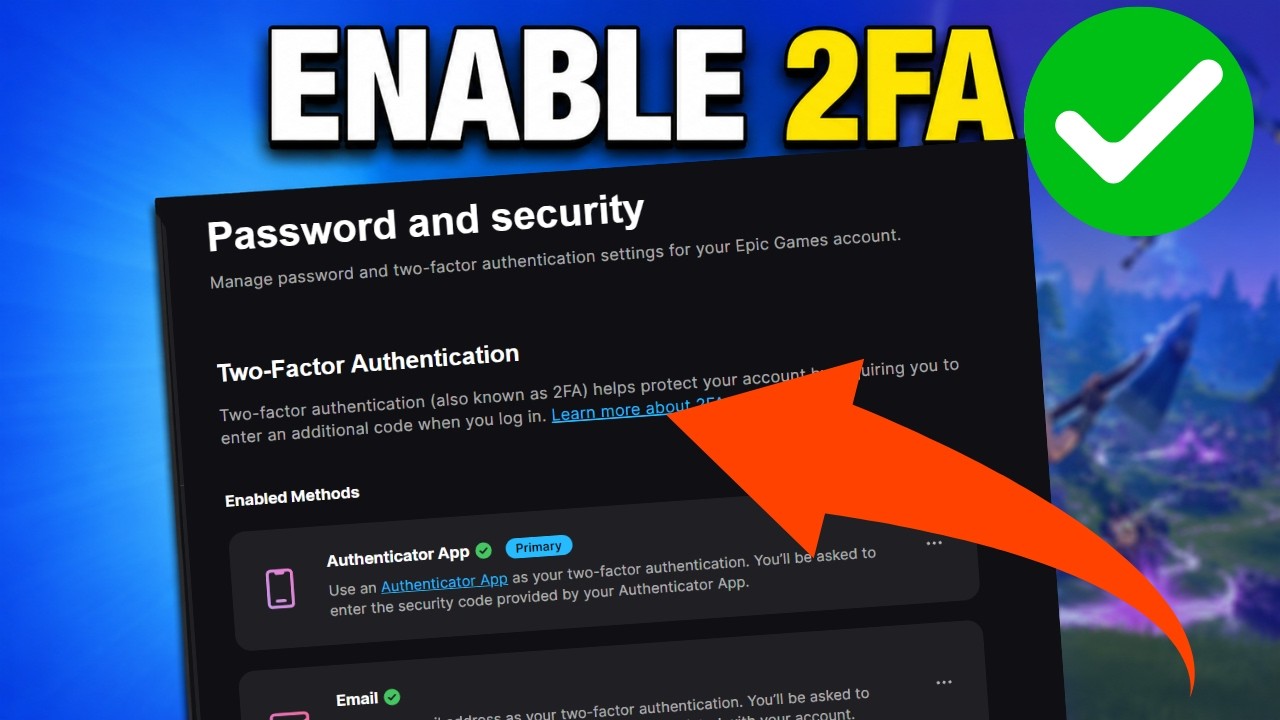
Whether you play casually on weekends or grind competitive ladders every single night, your gaming library represents hundreds—sometimes thousands—of hours of progression, rare unlocks, and digital purchases. Yet, many players still treat their gaming logins with casual indifference, using weak, recycled passwords across multiple platforms.
Relying on a standard password is no longer enough to keep malicious actors at bay. Modern digital attackers use automated credential stuffing tools and session-stealing malware that bypass traditional login hurdles entirely. The single most effective defense against these threats is enabling robust Two-Factor Authentication (2FA) across every platform you use.
Quick Diagnostic & Troubleshooting Reference Table
Refer to this 2FA setup reference guide for major gaming platforms:
| Gaming Platform | Recommended 2FA Method | Key Setup Location |
|---|---|---|
| Steam | Steam Guard Mobile App (Authenticator) | Steam Mobile App > Steam Guard tab |
| Epic Games Store | Authenticator App (TOTP) / Security Key | Epic Account Settings > Password & Security |
| PlayStation Network (PSN) | Authenticator App (Google/Authy) | Account Management > Security > 2SV |
| Xbox / Microsoft Account | Microsoft Authenticator App | Account.microsoft.com > Security > Advanced Security |
Why 2FA is Essential for Modern Gamers
Two-Factor Authentication adds a dynamic cryptographic barrier to your login process:
- Blocks Automated Attacks: Even if your password is leaked in a database breach, attackers cannot login without your 2FA token.
- Prevents Unauthorized Trades: Steam and Epic require 2FA verification before gifting items or completing market trades.
- Protect In-Game Purchases: Prevents unauthorized credit card charges on linked accounts.
Step-by-Step Technical Verification Steps
Follow these universal steps to activate 2FA across all your gaming accounts:
- Download an Authenticator App: Install Google Authenticator, Authy, or Microsoft Authenticator on your mobile phone.
- Navigate to Account Security Settings: Log into your gaming account on a browser, navigate to Security & Privacy, and select Enable 2FA / 2SV.
- Scan the QR Code: Open your authenticator app, scan the displayed QR code, and enter the generated 6-digit verification code.
- Save Your Emergency Backup Codes: Download the 10 emergency recovery codes and save them in a secure physical location or offline encrypted vault.
- Explore Security Utilities: Check our Gaming Tools database for authenticator comparison guides, 2FA backup protocols, and account security tools.
Frequently Asked Questions (FAQ)
What happens if I lose my phone with the 2FA Authenticator app?
If you lose your mobile device, you can log in using your single-use offline backup emergency recovery codes, or contact platform support with proof of identity and purchase receipts.
Is Authenticator App 2FA better than Email/SMS 2FA?
Yes. Authenticator apps (TOTP) generate time-sensitive offline codes that cannot be intercepted via SIM swapping or email account compromise.
Does enabling 2FA sign me out of all my devices?
Enabling 2FA for the first time usually gives you the option to deauthorize existing sessions, forcing all connected consoles and PCs to verify the new 2FA setup.